Importing the HARICA certificates on Windows
Importing root certificates
To enable the Python example client on https://github.com/iblsoft/swimdemo to verify the AMQP server's authenticity on the Windows platform, we need to import the HARICA root staging certificates for servers and clients into the operating system. This is because the Python client is based on Apache Qpid Proton (Python API) , which on Windows does not use OpenSSL but redirects to the Windows TLS subsystem using the SChannel library. Windows is not aware of the HARICA staging root certificates used for testing SWIM services by default.
To import the HARICA certificate, follow these steps:
- Run the Windows Certificate Manager by typing "certmgr" into the Windows search bar.
- In certmgr, browse to Trusted Root Certification Authorities.
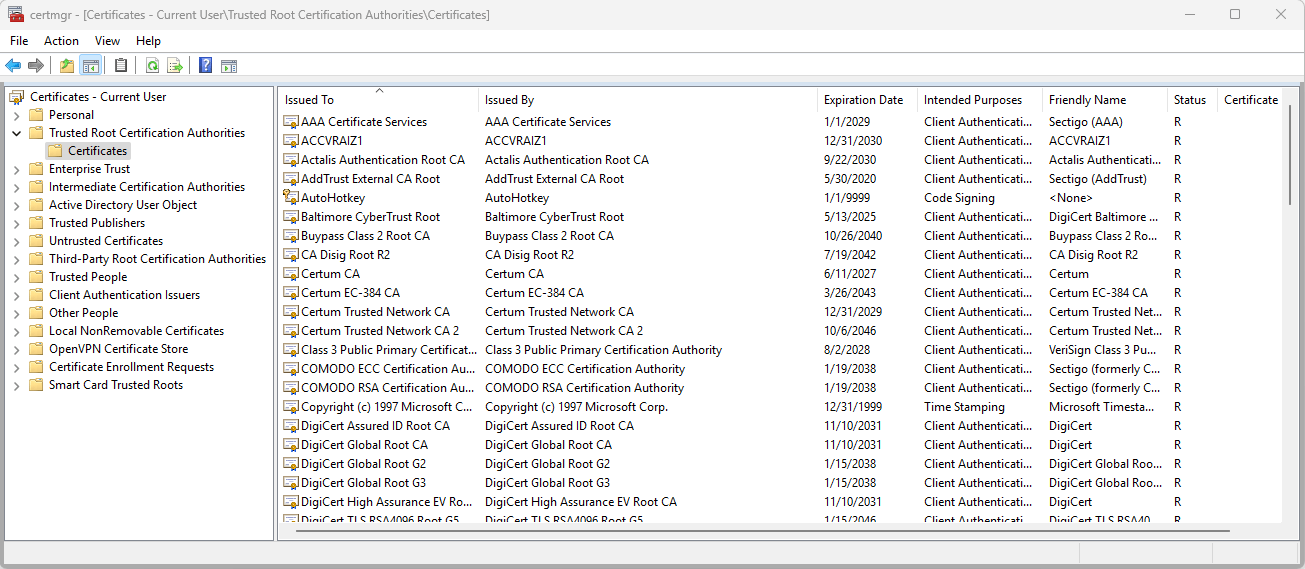
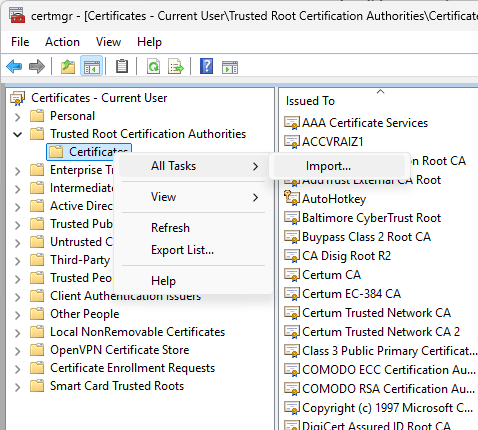
- Right-click on the Certificates folder.
- From the All Tasks menu pick the Import... option.
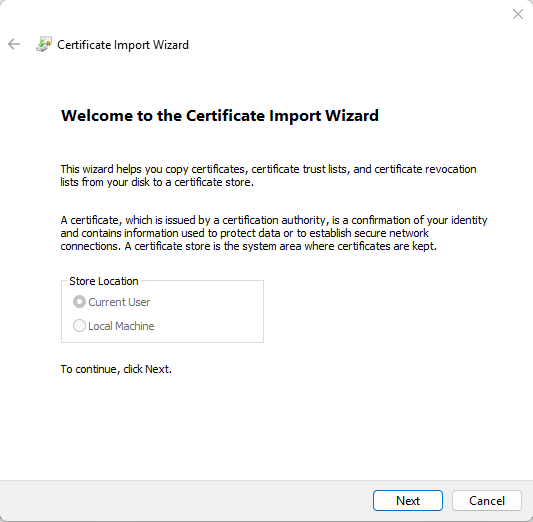
- This will start the Certificate Import Wizard, which will inform you that the certificate is going to be saved in the "Current User" store.
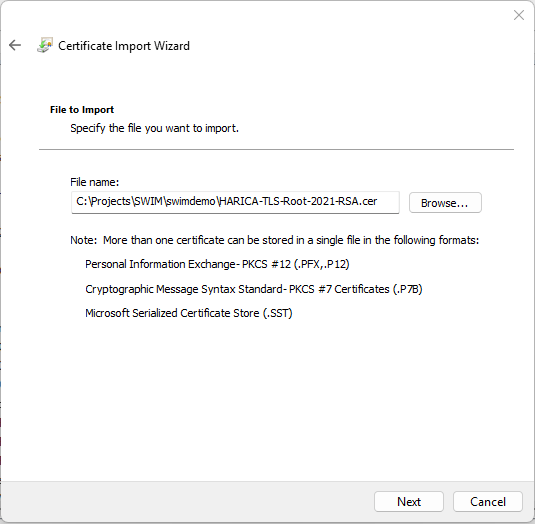
- On the next screen, browse to the HARICA root testing certificate e.g. HARICA-TLS-Root-2021-RSA.cer, and confirm with Next.
- The wizard will inform you it is going to store the imported certificate under the Trusted Root Certification Authorities. This is exactly what we need, so confirm with Next.
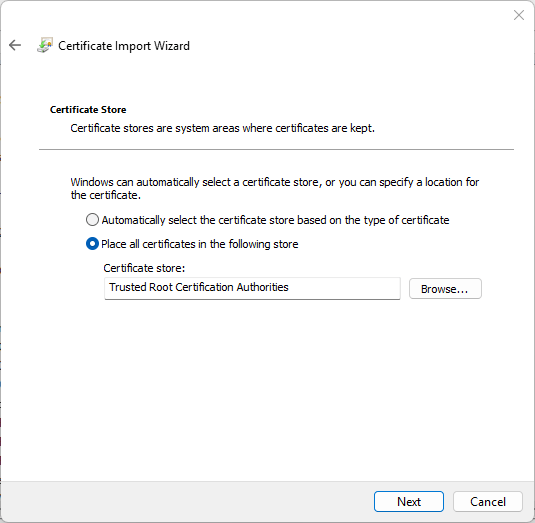
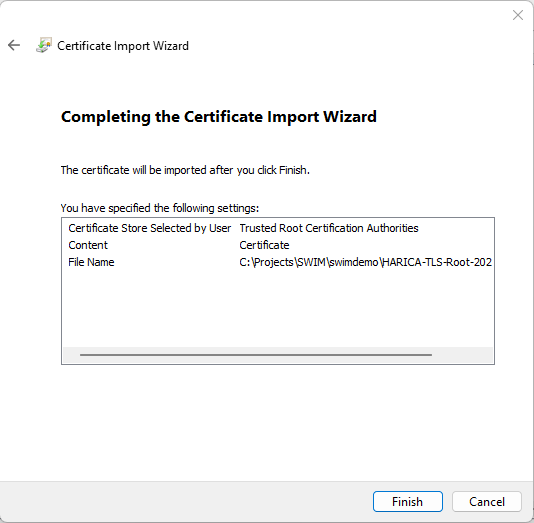
- A confirmation dialog will pop-up, confirm again with Next.
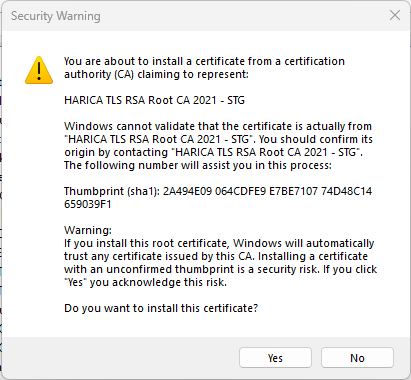
- If you get the following Security Warning, confirm with Yes:
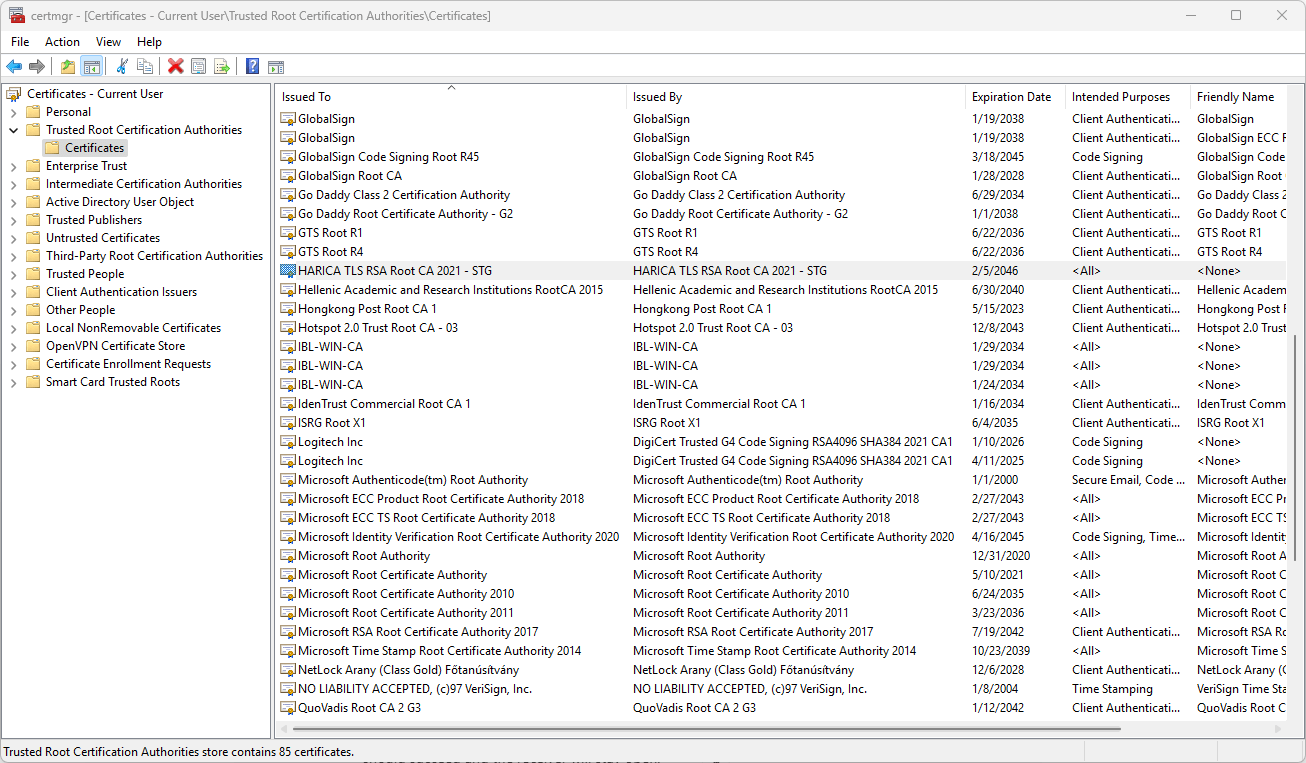
- You should finally see the HARICA testing certificate imported in certmgr.
- You can now close certmgr.
The Python test client should now be able to verify the server's authenticity.
Troubleshooting TLS/SSL handshake issues
If you have troubles getting the certificates to work, it can be useful to get more insight into what Windows is doing during validation. This involves enabling verbose logging of the certificate subsystem and looking at the Windows Eventy Viewer.
- To enable verbose logging of certificate verification, open a CMD console with administrative privileges.
Run the following command to enable verbose logging for SChannel:
certutil -setreg chain\ChainDebug 1
- After enabling logging, you can view the logs in the Windows Event Viewer.
- In the Windows search bar type "Event" which should offer you the Event Viewer. Run it as Administrator.
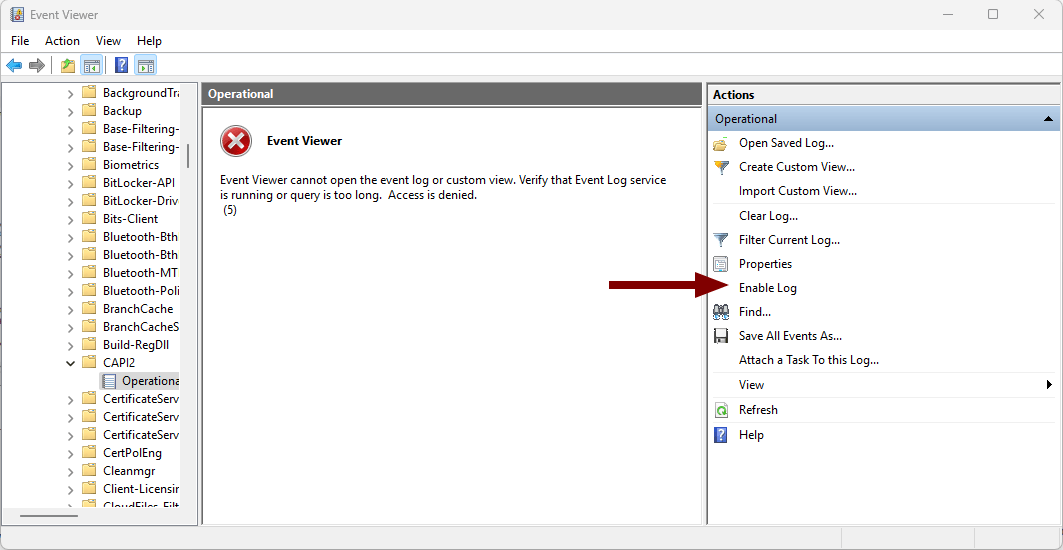
- Navigate to: Applications and Services Logs > Microsoft > Windows > CAPI2 > Operational
- Enable the Operational log if not already enabled:
- Run the program for which you want to reproduce the SSL/TLS handshake issues.